UI Alignment System
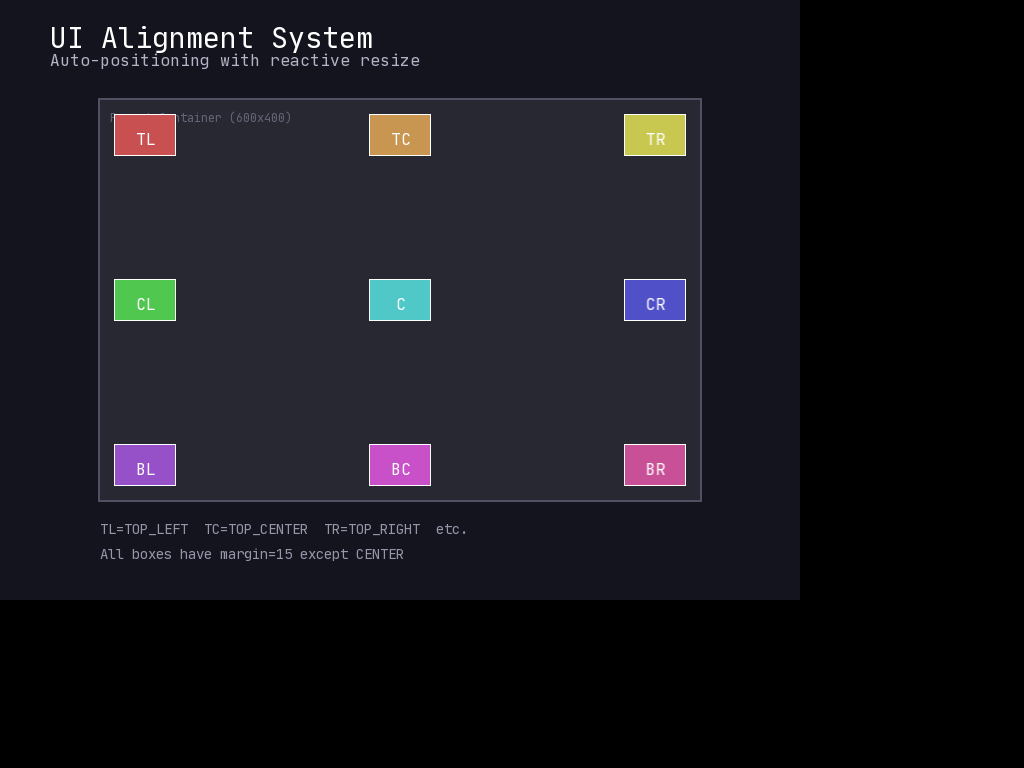
Automatically position UI elements relative to their parent with reactive repositioning when the parent resizes.
Overview
The Alignment system lets you anchor UI elements to specific positions within their parent container. When the parent resizes, aligned children automatically reposition themselves.
Alignment Options
Nine alignment positions are available:
| Left | Center | Right | |
|---|---|---|---|
| Top | TOP_LEFT |
TOP_CENTER |
TOP_RIGHT |
| Center | CENTER_LEFT |
CENTER |
CENTER_RIGHT |
| Bottom | BOTTOM_LEFT |
BOTTOM_CENTER |
BOTTOM_RIGHT |
Quick Start
import mcrfpy

# Create parent container
parent = mcrfpy.Frame(pos=(100, 100), size=(400, 300))

# Create centered child
child = mcrfpy.Frame(pos=(0, 0), size=(100, 50))
child.fill_color = mcrfpy.Color(200, 50, 50)
child.align = mcrfpy.Alignment.CENTER

# Add to parent - alignment triggers automatically
parent.children.append(child)
# child is now at (150, 125) - centered in the 400x300 parent
Using Margins
Add spacing from edges with the margin property:
# Health bar in top-left corner with 10px padding
health_bar = mcrfpy.Frame(pos=(0, 0), size=(200, 30))
health_bar.align = mcrfpy.Alignment.TOP_LEFT
health_bar.margin = 10.0  # 10px from top and left edges

parent.children.append(health_bar)
# health_bar is now at (10, 10)
Use horiz_margin and vert_margin for independent control:
# Element with different horizontal/vertical margins
element = mcrfpy.Frame(pos=(0, 0), size=(100, 100))
element.align = mcrfpy.Alignment.BOTTOM_RIGHT
element.horiz_margin = 20.0  # 20px from right edge
element.vert_margin = 10.0   # 10px from bottom edge

parent.children.append(element)
Note: CENTER alignment does not support margins (the element is centered, so margins don’t make sense). Setting margin on a centered element raises ValueError.
Reactive Repositioning
Aligned children automatically reposition when their parent resizes:
parent = mcrfpy.Frame(pos=(0, 0), size=(200, 200))

child = mcrfpy.Frame(pos=(0, 0), size=(50, 50))
child.align = mcrfpy.Alignment.CENTER
parent.children.append(child)

print(f"Initial: ({child.x}, {child.y})")  # (75, 75)

# Resize parent
parent.w = 400
parent.h = 400

print(f"After resize: ({child.x}, {child.y})")  # (175, 175)
Freezing Position
Set align = None to freeze an element at its current position:
# Center the element first
child.align = mcrfpy.Alignment.CENTER
parent.children.append(child)  # Positions at center

# Freeze position
child.align = None

# Now parent resizing won't move the child
parent.w = 800  # child stays at its current position
This is useful for elements that should be initially placed via alignment but then remain fixed.
Common Patterns
Corner HUD Elements
def create_hud(scene):
    """Create HUD with elements in each corner."""
    # Full-screen container
    hud = mcrfpy.Frame(pos=(0, 0), size=(800, 600))
    hud.fill_color = mcrfpy.Color(0, 0, 0, 0)  # Transparent
    scene.children.append(hud)

    # Health in top-left
    health = mcrfpy.Frame(pos=(0, 0), size=(200, 40))
    health.align = mcrfpy.Alignment.TOP_LEFT
    health.margin = 10.0
    hud.children.append(health)

    # Score in top-right
    score = mcrfpy.Caption(text="Score: 0", pos=(0, 0))
    score.align = mcrfpy.Alignment.TOP_RIGHT
    score.margin = 10.0
    hud.children.append(score)

    # Inventory in bottom-left
    inventory = mcrfpy.Frame(pos=(0, 0), size=(150, 100))
    inventory.align = mcrfpy.Alignment.BOTTOM_LEFT
    inventory.margin = 10.0
    hud.children.append(inventory)

    # Minimap in bottom-right
    minimap = mcrfpy.Frame(pos=(0, 0), size=(120, 120))
    minimap.align = mcrfpy.Alignment.BOTTOM_RIGHT
    minimap.margin = 10.0
    hud.children.append(minimap)

    return hud
Centered Modal Dialog
def show_modal(scene, title, message):
    """Display a centered modal dialog."""
    # Overlay background
    overlay = mcrfpy.Frame(pos=(0, 0), size=(800, 600))
    overlay.fill_color = mcrfpy.Color(0, 0, 0, 128)
    scene.children.append(overlay)

    # Dialog box - centered
    dialog = mcrfpy.Frame(pos=(0, 0), size=(300, 200))
    dialog.fill_color = mcrfpy.Color(40, 40, 50)
    dialog.outline = 2
    dialog.outline_color = mcrfpy.Color(100, 100, 120)
    dialog.align = mcrfpy.Alignment.CENTER
    overlay.children.append(dialog)

    # Title - centered at top of dialog
    title_caption = mcrfpy.Caption(text=title, pos=(0, 0))
    title_caption.align = mcrfpy.Alignment.TOP_CENTER
    title_caption.vert_margin = 20.0
    dialog.children.append(title_caption)

    # Message - centered
    msg_caption = mcrfpy.Caption(text=message, pos=(0, 0))
    msg_caption.align = mcrfpy.Alignment.CENTER
    dialog.children.append(msg_caption)

    return overlay
Responsive Button Bar
def create_button_bar(parent):
    """Create a button bar at the bottom-center."""
    bar = mcrfpy.Frame(pos=(0, 0), size=(300, 50))
    bar.fill_color = mcrfpy.Color(30, 30, 40)
    bar.align = mcrfpy.Alignment.BOTTOM_CENTER
    bar.vert_margin = 20.0
    parent.children.append(bar)

    # Buttons spaced within the bar
    button_width = 80
    spacing = 20

    for i, label in enumerate(["Attack", "Defend", "Item"]):
        btn = mcrfpy.Frame(pos=(spacing + i * (button_width + spacing), 10),
                          size=(button_width, 30))
        btn.fill_color = mcrfpy.Color(60, 60, 80)

        text = mcrfpy.Caption(text=label, pos=(0, 0))
        text.align = mcrfpy.Alignment.CENTER
        btn.children.append(text)

        bar.children.append(btn)

    return bar
Supported UI Elements
All UIDrawable types support alignment:
FrameCaptionSpriteGrid
Tips
- Set alignment before adding to parent - Alignment triggers when the child is added
- Use transparent containers - Create invisible Frame containers just for layout organization
- Combine with Animation - Set
align = None, then animatex/yfor sliding effects (marginitself is not animatable) - Remember CENTER has no margin - Use CENTER_LEFT/CENTER_RIGHT with margin for offset centering
See Also
- Health Bar - Use alignment for positioning health bars
- Modal Dialog - Centered dialogs with alignment
- Tooltip - Dynamically positioned tooltips